
Nearly 60 percent of Canadians prefer completing legal tasks online instead of visiting in person. Trying to notarize documents remotely can save hours, but missing a single ID requirement could halt the process. Knowing which identification you need, how to scan it, and preparing your documents properly will help you move smoothly through every step of Ontario’s online notarization system.
Quick Summary
| Key Point | Explanation |
|---|---|
| 1. Gather valid ID for notarization | You need one valid photo ID or two non-photo IDs for online notary services in Ontario. |
| 2. Prepare high-quality digital copies | Scan your IDs using good lighting and a neutral background for clear copies before submission. |
| 3. Follow upload instructions meticulously | Adhere to the platform’s specific guidelines for upload, ensuring legibility and proper formatting. |
| 4. Verify your submission status promptly | Keep track of confirmation emails and platform notifications to confirm document processing and address any issues. |
| 5. Ensure ID matches your appearance | The photo on your ID must resemble your current appearance for the verification process during the online appointment. |
Table of Contents
- Step 1: Gather Required Identification Documents
- Step 2: Prepare Digital Copies In Accepted Formats
- Step 3: Access The Online Notary Service Portal
- Step 4: Upload Your Id Following Upload Instructions
- Step 5: Verify Your Uploaded Id And Submission Status
Step 1: Gather required identification documents
Preparing your identification documents is the first critical step in completing your online notarization process in Ontario. You will need to collect valid government issued identification that meets official verification standards.
Start by understanding the key identification requirements for online notary services. According to research from Notarize.ca, you have two primary pathways for ID verification. First, you can use one valid unexpired government issued photo ID such as a passport, driver’s licence, photo ID card, citizenship or status card. Alternatively, you can provide two non photo government issued documents like birth or marriage certificates.
When selecting your identification documents, prioritize clarity and current validity. Choose IDs that are:
- Unexpired and in good condition
- Issued by an official government agency
- Clear and legible when scanned
- Matching the name on your notarization documents
Pro Tip: Always have backup identification ready. If your primary ID is unclear or gets rejected, you will want a second option immediately available.
For individuals with multiple ID options, we recommend using a photo ID as your primary document. A passport or driver’s licence provides the strongest verification for online notary services. Non photo documents like birth certificates work best when submitted in a pair.
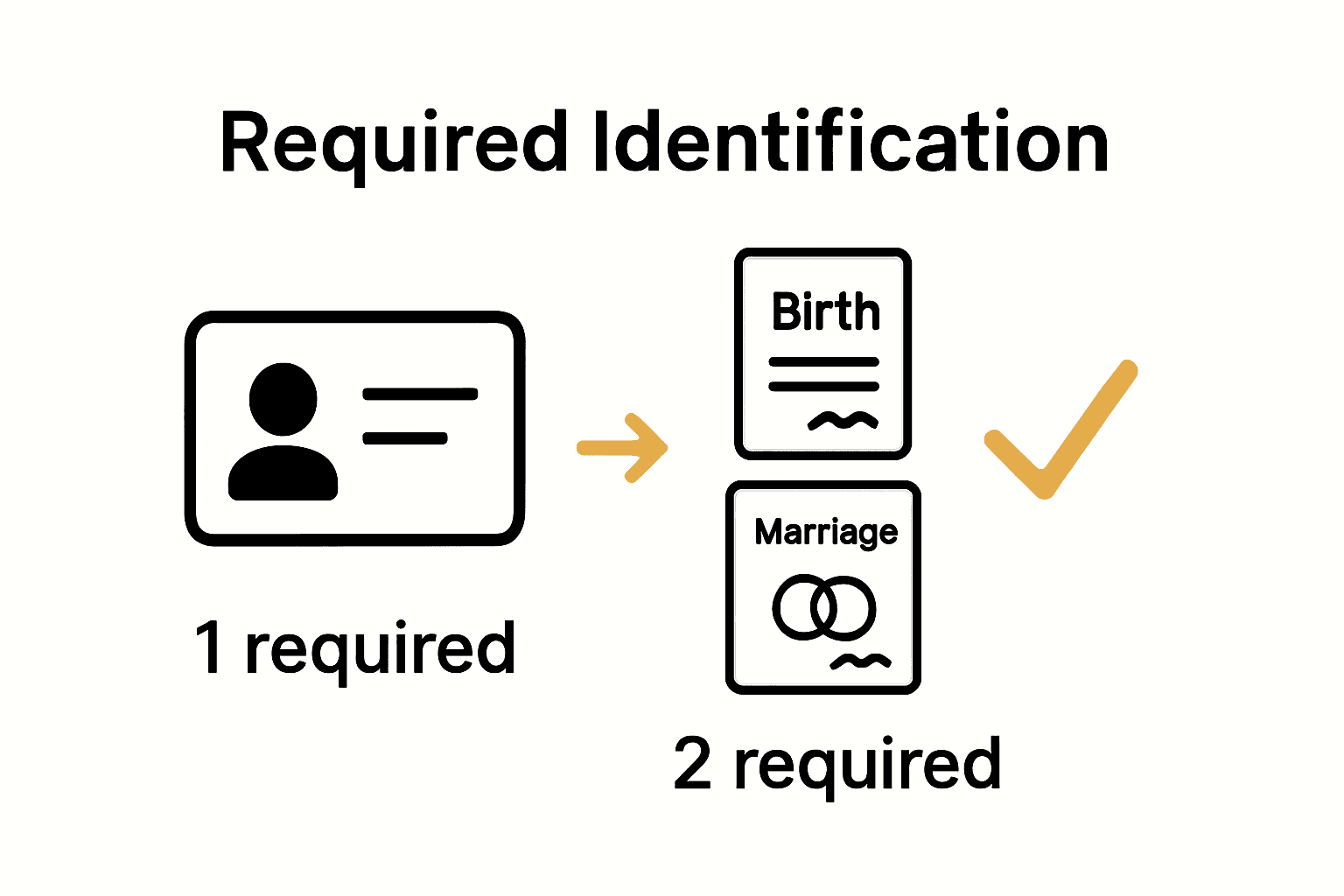
Here’s a comparison of accepted identification types for online notarization in Ontario:
| ID Type | Number Needed | Example Documents | When to Use |
|---|---|---|---|
| Photo ID | 1 | Passport Driver’s licence Photo ID card Citizenship card Status card | Primary method Strongest verification |
| Non-photo Government ID | 2 | Birth certificate Marriage certificate | When no photo ID is available |
As research from AC Legal Services confirms, most online notary platforms require you to scan and submit your identification prior to your appointment. Ensure your scanning environment has good lighting and a neutral background to maximize document clarity.
Ready to move forward? The next step is preparing your digital document scans with precision and care.
Step 2: Prepare digital copies in accepted formats
Now that you have gathered your identification documents, the next crucial step is transforming them into digital files that meet online notary service requirements. Your goal is to create clear, professional digital copies that will pass verification checks.
According to NotaryPro’s online notary services platform, you have multiple file format options for uploading your documents. These accepted formats include Word documents, PDFs, JPEG and PNG image files. This flexibility allows you to choose the most convenient method for digitizing your identification.
When scanning or photographing your documents, follow these key guidelines:
- Position your document on a plain neutral background
- Use natural daylight or bright overhead lighting
- Hold your camera or scanner directly above the document
- Ensure entire document edges are visible
- Capture the full document without any shadows or glare
Pro Tip: Use your smartphone’s scanner app for professional quality images that meet digital submission standards.
For the best digital copy, use a high resolution scanner or smartphone camera set to its highest quality setting. Take multiple shots from different angles to guarantee at least one perfect digital reproduction.
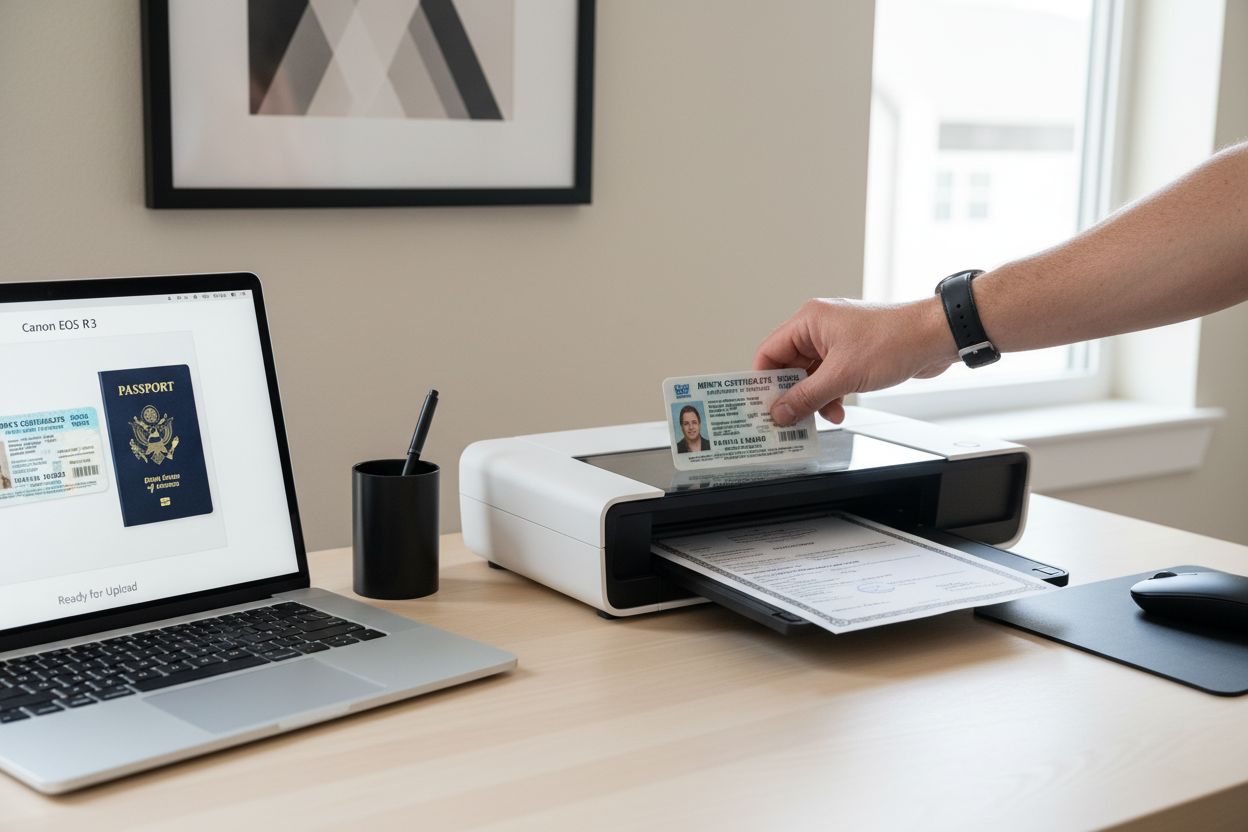 This approach minimizes the chance of rejection during the online verification process.
Ensure your digital files are crisp and legible. Text should be sharp and readable without blurriness or distortion. Check that file sizes are not excessively large most platforms have upload limits around 10 megabytes per document.
Ready to move forward? The next step is uploading your precisely prepared digital identification documents to the online notary platform.
Step 3: Access the online notary service portal
With your identification documents prepared, you are now ready to navigate the online notary service portal and begin your authentication process. This step transforms your preparation into actual document verification.
According to research from Notarize.ca, the initial access typically involves logging in or creating a new account on the platform. You will want to look for a clear login or sign up button prominently displayed on the website. When creating your account, have your personal information and email address readily available.
Once logged in, most online notary platforms follow a similar workflow. As demonstrated by research from AC Legal Services, you will need to:
- Click on a ‘New Appointment’ or ‘Book Notary’ button
- Select your preferred date and time
- Choose an available notary professional
- Upload your previously prepared digital documents
Pro Tip: Double check your internet connection before starting the portal access process. A stable connection prevents frustrating interruptions during document upload.
When selecting your notary, pay attention to their availability and specialization. Some platforms provide brief professional profiles that can help you choose the most suitable notary for your specific document type.
For those seeking comprehensive online notary services in Ontario, understanding the portal navigation is crucial. Most platforms design their interfaces to be user friendly and intuitive.
Ready for the next phase? Prepare to upload your meticulously prepared identification documents and move closer to completing your online notarization.
Step 4: Upload your ID following upload instructions
You have reached a pivotal moment in your online notarization process uploading your identification documents. This step transforms your carefully prepared digital files into official verification credentials.
According to research from ClickNotary, the upload process typically begins with an email confirmation link that provides direct access to the document submission portal. When uploading your identification, precision is key.
Prepare to upload both the front and back of your government issued photo ID. Most platforms require clear scans that capture every detail of your identification. Ensure your digital copies meet these critical standards:
- Full visibility of document edges
- No shadows or glare obscuring text
- High resolution image quality
- Completely legible text and photograph
Pro Tip: Review your scanned images before uploading. A single blurry section could trigger a rejection and delay your notarization process.
Pay special attention to the specific instructions provided by your online notary platform. Some services have unique requirements for file size, image resolution, or document positioning. Read each instruction carefully to avoid unnecessary complications.
For those seeking comprehensive guidance on online notary requirements, understanding the upload nuances is crucial. Each platform may have slightly different specifications for digital document submission.
Ready for the final verification step? Prepare yourself for the next phase of the online notarization journey.
Step 5: Verify your uploaded ID and submission status
You are now approaching the final verification stage of your online notarization process. This critical step ensures your identification and submission meet all required standards before your official notary meeting.
According to research from Notarize.ca, the verification process involves multiple checkpoints. During the online appointment, the notary will carefully compare the physical ID you present during the video meeting with the digital version you previously uploaded. This cross verification ensures complete authenticity and prevents potential fraud.
When verifying your submission status, pay close attention to these key elements:
- Confirmation of successful document upload
- Email notifications about submission review
- Platform status indicators showing document processing
- Any requests for additional information or clarification
Pro Tip: Keep all communication channels open. Check your email spam folder and platform notifications to ensure you do not miss any important verification messages.
Research from ClickNotary emphasizes that your uploaded ID must be perfectly legible and match your appearance in the video meeting. This means the photograph on your ID should closely resemble your current appearance.
For comprehensive insights into online notary verification processes, understanding these nuanced steps is crucial. Each platform may have slight variations in their verification protocol.
Ready for the final step? Prepare for your live online notarization meeting where your documents will be officially authenticated.
Ready to Upload Your ID for Fast Online Notary Services?
Are you feeling anxious about whether your ID will be accepted for your important online notarization? Many Ontarians worry about clarity, format, or delays that can derail affidavits, statutory declarations, or invitation letters. You have learned in this article how technical issues, scanning quality, and verification steps are often the main sources of frustration when moving your notary documents online.

Let us take away your stress. At The Online Notary, we make each step clear and simple, ensuring your ID upload is quick and successful. Our platform is built for ease, whether you are finalizing a statutory declaration or certifying a solemn declaration. Do not risk having your documents rejected or delayed. Join thousands in Ontario who rely on us for secure, same-day notarization. Visit The Online Notary now to start your process with confidence and peace of mind.
Frequently Asked Questions
What type of identification do I need to upload for online notary services?
To complete your online notarization, you need to upload either one valid government-issued photo ID or two non-photo government documents. Gather these documents in advance to streamline the upload process.
How do I ensure my ID scan is acceptable for online notarization?
Make sure your scans are clear, high-resolution, and show all document edges without shadows or glare. Check your uploads before submission to avoid rejections and delays in your notary appointment.
What steps should I follow to upload my ID for Ontario notary services?
First, create and log in to your account on the notary platform, then navigate to the document upload section. Follow the specific instructions provided on the platform to upload your prepared ID files efficiently.
Can I use my smartphone to scan my ID for submission?
Yes, use your smartphone’s scanner app to create high-quality images of your ID. Ensure the lighting is good and that the entire document is visible in the scanned image to meet the notary’s requirements.
What should I do if my uploaded ID gets rejected?
If your ID is rejected, carefully review the feedback and ensure that your scans are clear and meet the platform’s specifications. Retake the photos or scans as needed, and upload them again promptly to avoid delays in your notarization process.
How can I verify the status of my uploaded ID?
Check your email for notifications regarding your document’s processing status or visit the notary portal to view updates. Make sure to keep an eye on any platform status indicators or requests for additional information.